


Installing a smart lock might sound like a job for a professional, but the truth is that most homeowners can do it themselves in under 30 minutes with nothing more than a screwdriver. This step-by-step guide will walk you through the entire process — from preparing your door to connecting your new lock to your smartphone — so you can enjoy the benefits of smart security without the cost of professional installation.
Before You Begin: What You'll Need
Before you start, gather the following:
Your new DELFA smart lock (check the box for all included components)
A Phillips head screwdriver
A flathead screwdriver
Fresh AA batteries (most locks require 4)
Your smartphone with the DELFA app installed
15–30 minutes of your time
That's it. No drilling, no wiring, no special tools required for a standard installation.
Step 1: Check Your Door Compatibility
Before removing anything, verify that your door is compatible with your new smart lock. Check the following:
Door thickness: Most DELFA locks work with doors between 1-3/8" and 2" thick. Measure yours with a ruler.
Backset: This is the distance from the edge of the door to the center of the existing lock hole. Standard backsets are 2-3/8" or 2-3/4". Your lock will come with hardware for both sizes.
Door handing: Some locks are designed specifically for left-handed or right-handed doors. Check the product specifications.
Existing deadbolt: Most smart locks replace only the interior portion of your existing deadbolt, leaving the exterior strike plate and cylinder in place. Check whether your existing deadbolt is compatible.
If everything checks out, you're ready to proceed.
Step 2: Remove Your Existing Lock
Start by opening your door so you have easy access to both sides.
On the interior side of the door, locate the two screws holding the existing deadbolt's interior escutcheon (the decorative plate) in place. Remove these screws with your Phillips screwdriver and set the interior assembly aside.
Next, slide out the existing thumb turn mechanism. On most standard deadbolts, this simply pulls straight out once the screws are removed.
You do not need to remove the exterior keyhole or the latch bolt from the door edge — your smart lock will work with the existing exterior hardware in place.
Step 3: Install the New Latch and Strike Plate (If Required)
Some DELFA models come with a new latch bolt that replaces the existing one. If yours does:
Remove the two screws from the latch plate on the edge of the door.
Slide out the existing latch bolt.
Slide in the new latch bolt, making sure the angled face points toward the door frame.
Secure it with the provided screws.
If your existing latch bolt is compatible with the new lock, skip this step.
Step 4: Install the Interior Assembly
Take the interior assembly of your new smart lock and thread the connecting bar through the hole in the door. This bar connects the interior electronics to the exterior cylinder.
Align the interior assembly with the door holes and press it firmly against the door. Insert the two long mounting screws through the interior plate and into the exterior assembly. Tighten them with your Phillips screwdriver — firm but not overtight, as overtightening can affect the lock's operation.
Test the deadbolt manually by turning the thumb turn. The bolt should extend and retract smoothly. If it feels stiff, loosen the mounting screws slightly and readjust.
Step 5: Install the Batteries
Open the battery compartment on the interior assembly — this is typically located at the bottom of the interior unit and secured with a small screw or a sliding cover.
Insert the fresh AA batteries according to the polarity markings inside the compartment. Close the cover securely.
The lock should power on automatically. Most DELFA locks will indicate a successful power-on with a light flash or a brief beep.
Step 6: Set Your Master Code
Before connecting to your smartphone, you'll need to set a master PIN code directly on the lock. This is your primary backup access method and should be memorized but never shared.
On the keypad, follow the programming instructions included with your lock — typically pressing a programming button, entering a code, and confirming it. Your lock's LED indicator will confirm when the code is set successfully.
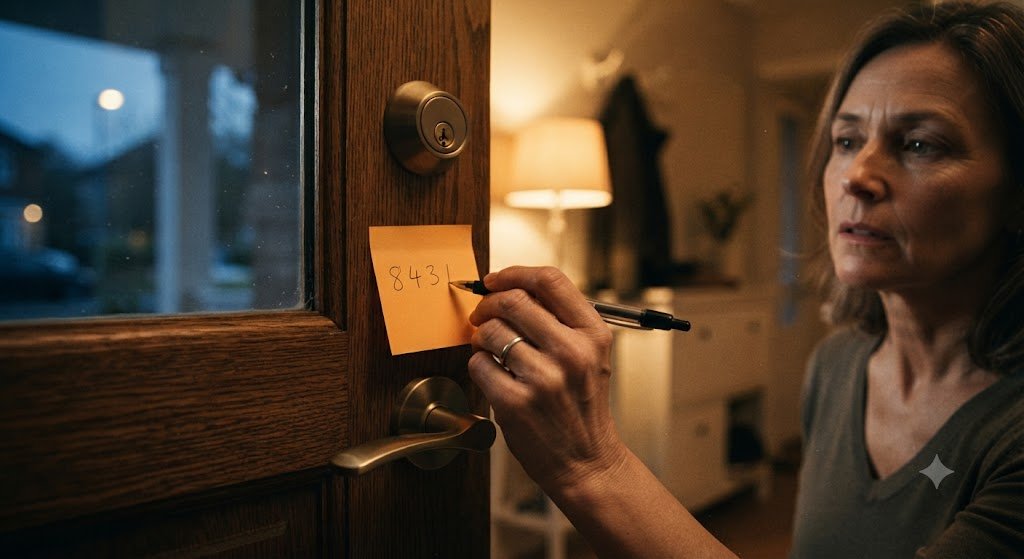
Write your master code down and store it somewhere secure — not on your phone, not near the door.
Step 7: Download the App and Connect
Download the DELFA Locks app from the App Store or Google Play. Create an account or sign in if you already have one.
Follow the in-app setup wizard to add your new lock:
Tap "Add Device" and select your lock model.
Enable Bluetooth on your phone and hold it near the lock.
The app will detect the lock automatically and begin the pairing process.
Follow the on-screen prompts to name your lock and complete the setup.
If your lock has Wi-Fi capability, you'll also be prompted to enter your home Wi-Fi credentials during setup. This enables remote access from anywhere.
Step 8: Test Everything
Before closing the door, test all access methods:
Enter your master PIN code on the keypad — the bolt should retract.
Lock and unlock from the app via Bluetooth.
If Wi-Fi is enabled, step outside your Bluetooth range and test remote locking via the app.
Test auto-lock if enabled — close the door and wait the configured time period.
If everything works correctly, you're done. Close the door and enjoy your new smart lock.
Step 9: Add Additional Users
Now that your lock is set up, add access for family members and anyone else who needs to enter your home regularly:
In the app, navigate to "Access Management" or "Users."
Add each person by creating a unique PIN code or inviting them to the app.
Set access schedules if needed — for example, a housekeeper who visits on Fridays only.
Troubleshooting Common Issues
Bolt doesn't extend/retract smoothly: The lock may not be aligned properly. Loosen the mounting screws slightly, adjust the position, and re-tighten.
Keypad doesn't respond: Check the batteries. Replace them even if they're new — occasionally a defective battery can cause issues.
App can't find the lock: Make sure Bluetooth is enabled on your phone and you're within range. Delete and reinstall the app if the problem persists.
Lock disconnects from Wi-Fi: Move your router closer to the door or use a Wi-Fi extender. Smart locks require a stable 2.4GHz signal.
Final Thoughts
Installing a smart lock is one of the easiest home improvement projects you can tackle. In the time it takes to watch a TV episode, you can completely upgrade your home's security and convenience.
If at any point you feel uncertain, DELFA's customer support team is available to guide you through the process. And if you'd prefer professional installation, we can connect you with certified technicians in your area.